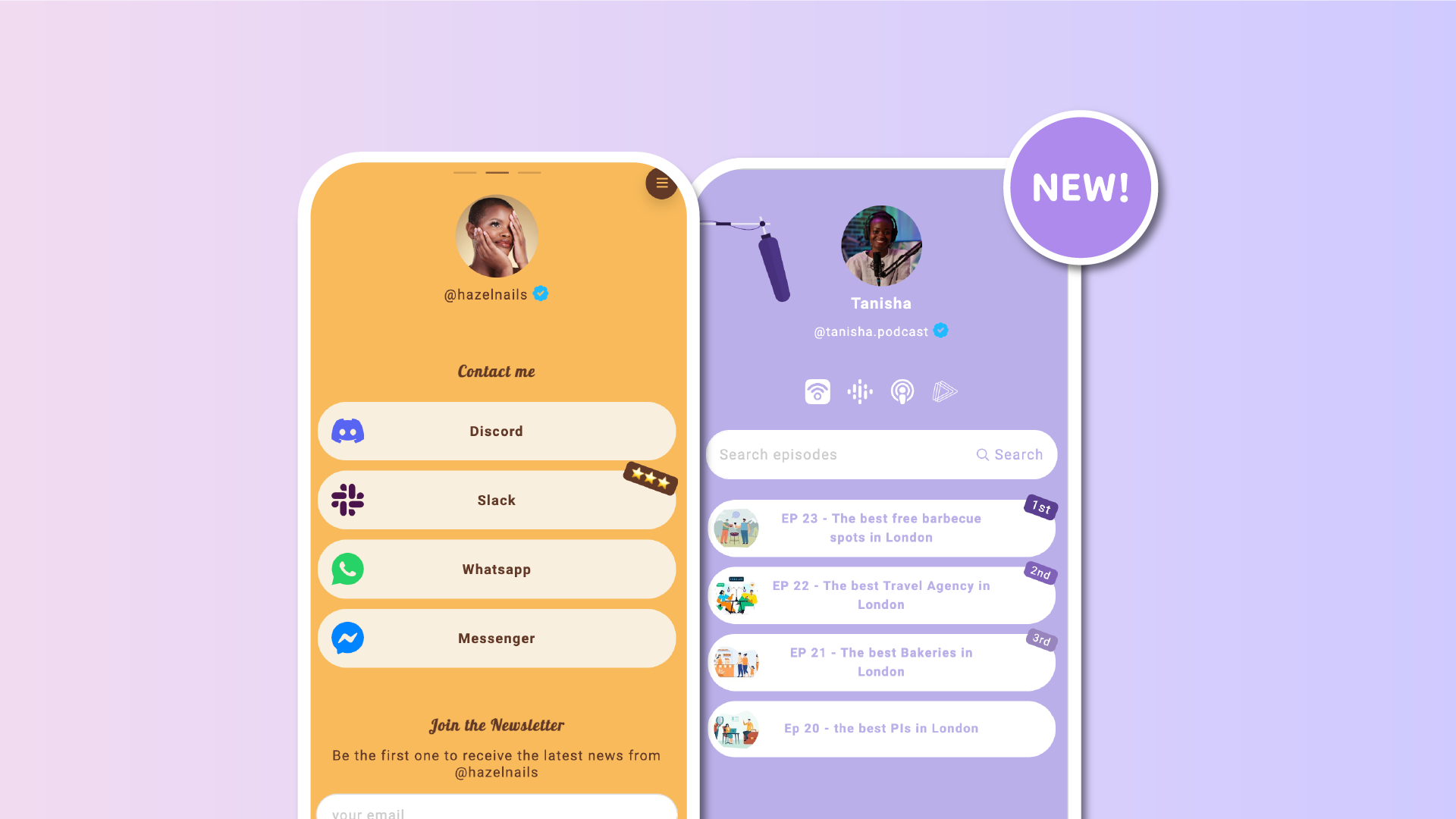

Yesterday, we introduced automated badges to highlight recent Lnks and help visitors quickly spot fresh content. That update was focused on what’s new.
Today, we’re expanding badges with a more flexible option. You can now add custom badges to individual Lnks, giving you full control over which Lnks are highlighted, regardless of when they were published.
Highlight what matters, not just what’s new
Badges are a simple and effective way to guide attention on your Lnk.Bio page. They help visitors quickly understand what deserves focus, whether that’s something new, something important, or something you want to promote.
With manual badges, you can highlight:
-
Your top post or product
-
An evergreen resource you want everyone to see
-
A featured offer or promotion
-
A priority link that drives conversions
-
Any Lnk that deserves extra visibility
Badges are no longer tied only to time. They’re now a strategic tool.
Full control, Lnk by Lnk
Each Lnk can now have its own badge behavior.
When editing an individual Lnk badge behaviour, you can choose between three modes:
-
Automatic
This is the default behavior. The Lnk follows your global badge settings and shows a badge only when it matches your automated rules on recent links.
-
Hidden
The badge is always hidden for this Lnk, even if it would normally appear due to your global configuration.
-
Custom
A custom badge is always shown on this Lnk until you turn it off, regardless of whether the Lnk is new or old.
This makes it easy to fine-tune your page and avoid overusing badges.
Customize each badge
Manual badges support the same customization options as global ones:
-
Custom label
-
Custom font size
For users on Unique plans or above, you can also customize the badge background and text colors. On other plans, the badge uses the default red and white style.
Each badge can be tailored to fit the importance and style of the Lnk it highlights.
Pro tip: add emojis to your badges ⭐
You can also include emojis in your badge labels.
Stars, arrows, or symbols can add emphasis and make important Lnks stand out even more, especially when used sparingly.
It’s a simple way to add personality and clarity at the same time.
How to add a badge to a single Lnk
Adding a badge to an individual Lnk is quick.
Go to the Lnks section and edit any existing Lnk.
Click Show advanced, then open Badge.
From there, choose whether the badge should be automatic, hidden, or custom, and customize it to fit your needs.
Designed for clarity, not clutter
Badges work best when they’re intentional.
By combining automated badges with per-Lnk control, you can guide attention without overwhelming your page. Highlight what matters, hide what doesn’t, and keep your layout clean and effective.
Built from community feedback
This feature was suggested by one of our top users, and we were genuinely happy to implement it quickly. Feedback like this helps us keep improving Lnk.Bio in ways that reflect how you actually use it.
Keep sharing your ideas with us. We’re building Lnk.Bio together.