
Tracking where your traffic comes from is essential if you want to understand what’s working and where to focus your efforts.
UTM parameters are a common way to do this. Social networks, ads, newsletters, and campaigns often append UTM values to your Lnk.Bio URL so you can measure performance downstream.
With this new release, Lnk.Bio can now automatically forward UTM parameters to your Lnks.
What is UTM forwarding?
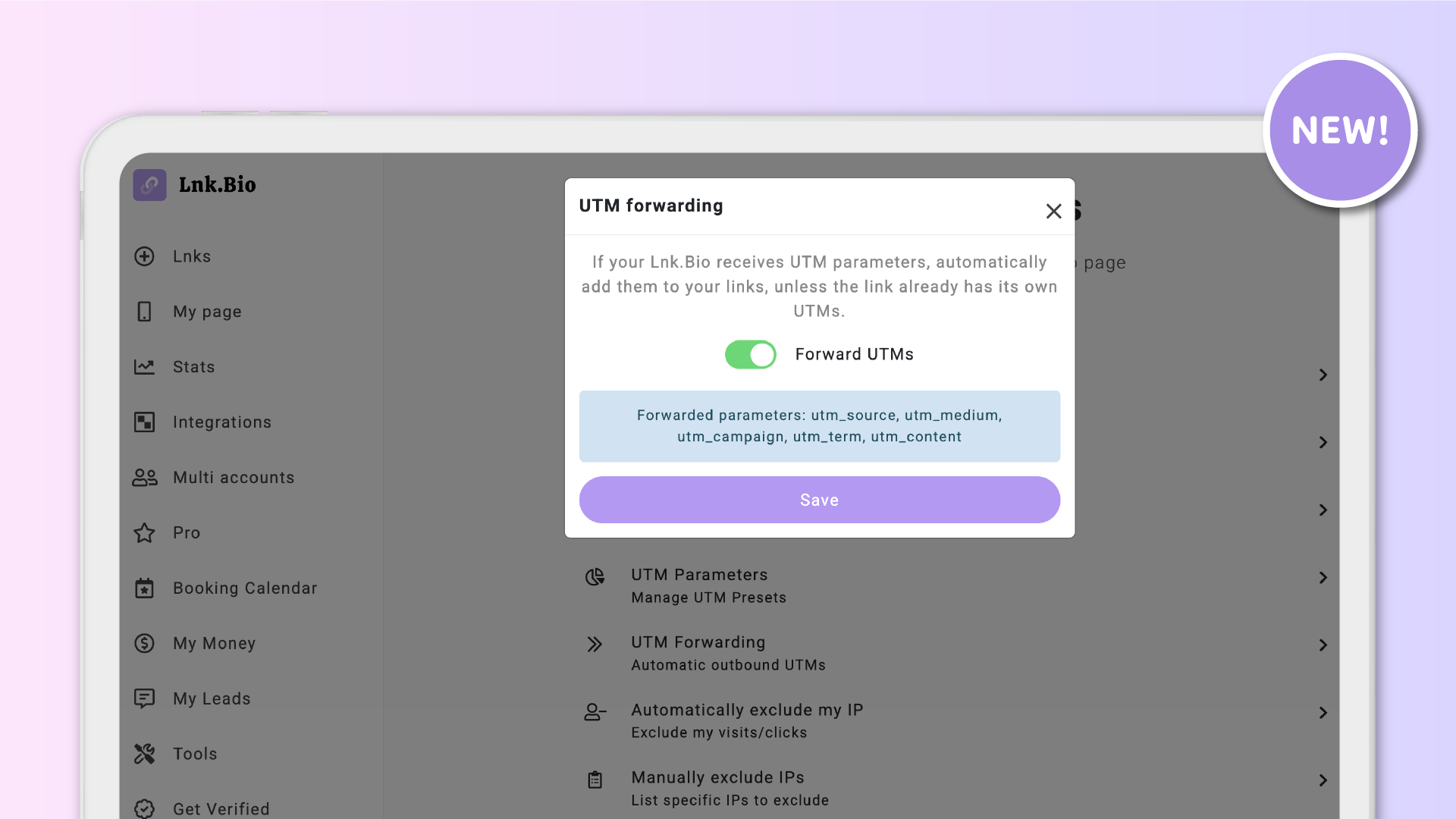
UTM forwarding allows Lnk.Bio to pass tracking parameters it receives on your page URL directly to the destination links your visitors click.
When someone lands on your Lnk.Bio page with UTM parameters, those same parameters can now be forwarded to your Lnks automatically.
The forwarded parameters include:
-
utm_source
-
utm_medium
-
utm_campaign
-
utm_term
-
utm_content
This means your analytics tools can continue tracking the full journey, from the original source all the way to the final destination.
Why this matters
Without UTM forwarding, tracking can break at the link-in-bio step.
For example:
-
A visitor clicks your Instagram bio link with UTMs attached
-
They land on your Lnk.Bio page
-
They click one of your Lnks
-
The UTM information is lost
With UTM forwarding enabled, those parameters are preserved.
This helps you:
-
See which social networks or campaigns actually drive conversions
-
Measure performance more accurately in tools like Google Analytics
-
Avoid manual work and tracking gaps
-
Keep attribution consistent across your funnels
It’s especially useful if you run ads, promotions, or campaigns across multiple platforms.
Works automatically, when needed
This feature is designed to complement existing workflows, not replace them.
UTM forwarding:
-
Applies only to Lnks that do not already have UTM presets or parameters
-
Leaves your existing UTM presets exactly as they are
-
Automatically forwards UTMs only when no manual tracking is defined
If a Lnk already has UTM parameters set up, Lnk.Bio will continue using those and will not override them.
This ensures full backward compatibility and predictable behavior.
No setup per Lnk required
Once enabled, UTM forwarding works automatically across your page.
You don’t need to:
-
Edit individual Lnks
-
Manually add UTMs everywhere (unless you want to)
-
Change your existing tracking strategy
Lnk.Bio handles the forwarding in the background, only when appropriate.
How to enable UTM forwarding
Turning on UTM forwarding takes just a moment.
Go to Stats, open Settings, and enable UTM forwarding.
From that point on, incoming UTM parameters will be forwarded automatically to eligible Lnks.
Available on MINI plans and above
UTM forwarding is available for users on the MINI plan and above.
Once enabled, you can immediately benefit from more accurate attribution and cleaner analytics.
When UTM forwarding is most useful
UTM forwarding is especially valuable when your Lnks point to destinations you control or track directly.
For example:
-
Your own website or landing pages
-
A blog or news site you manage
-
Your own ecommerce store
-
Campaign pages where you rely on analytics to measure performance
In these cases, forwarding UTMs helps preserve attribution and gives you clearer insights into how visitors move from social platforms to your final pages.
When UTM forwarding may not be needed
If most of your Lnks point to external destinations you don’t control, UTM forwarding may be less useful.
For example:
-
Affiliate links
-
Third-party ecommerce platforms
-
External marketplaces or partner websites
In these scenarios, you often don’t have access to the analytics on the destination side, and the platform actually need to see the traffic coming from you, not the initial source.
That’s why UTM forwarding is designed to be optional. You can enable it when it fits your tracking goals, and leave it off when it doesn’t.
Better tracking, less effort
This update helps close a common tracking gap and makes it easier to understand where your traffic and results are really coming from.
As always, the goal is to give you powerful features that work quietly in the background, so you can focus on creating and sharing content while Lnk.Bio takes care of the details.